App Guide
This page covers the screens and features of the ParrotClaw app.
Overview
ParrotClaw is a conversational AI digital-employee app. The main screens are organised as tabs:
| Tab | Description |
|---|---|
| 💬 Chat | The main AI chat screen, supporting text, images, voice and files |
| 🎙️ Voice | A voice-only interface — just talk and it listens |
| 👤 Digital human | Live2D digital-human conversation, with expressions and lip-sync |
| ⚙️ Settings | Server management, voice configuration, about page |
Chat screen
Basics
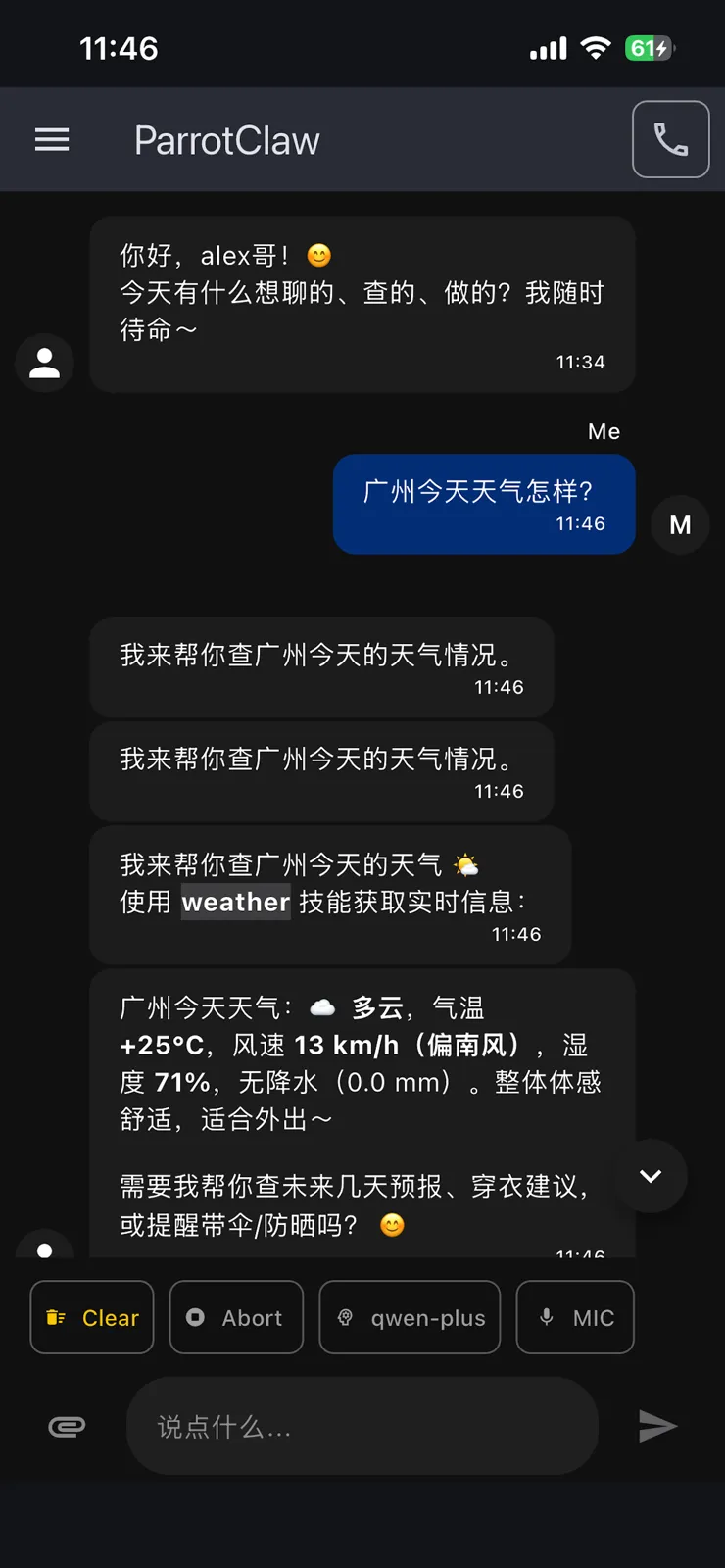
The app opens on the chat screen by default. The input box at the bottom supports:
- Text input — type as you would in any chat
- Voice input — tap the record button to start; it sends automatically when you stop speaking
- Images — tap + to pick from the album or take a photo
- Files — tap + to choose a file (audio, documents, and more)
Message types
The app renders several message formats:
| Message type | How it is displayed |
|---|---|
| Text | Chat bubble, Markdown supported |
| Streaming text | Progressive display as the agent emits tokens |
| Image | Inline, tap to enlarge |
| Audio | Player control with play / pause / seek |
| Video | Video player (uses the native platform player) |
| File | File card, tap to preview or save |
| System message | Connection status, error notices, and so on |
Composer actions
Besides text and voice, the "+" button on the left of the input box opens more actions:
- 📷 Camera — take a photo and send it
- 🖼️ Album — choose an image from your album
- 📎 File — choose a file from the file manager
- 🎤 Voice input — tap to record; it sends automatically when you stop speaking
Long-press a message
Long-pressing any message opens an action menu:
- Copy — copy the message text
- Read aloud — read this message with TTS
Voice screen
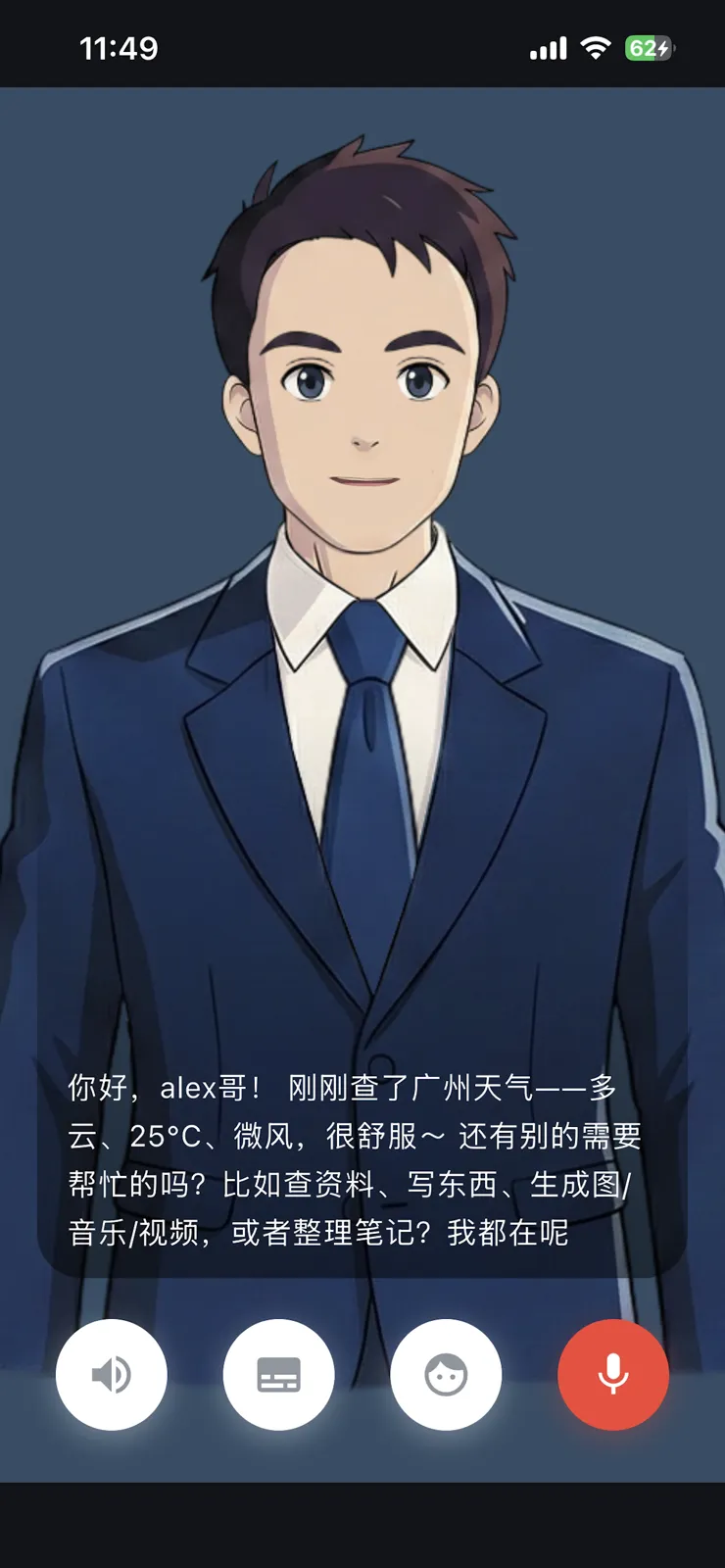
The voice screen offers a voice-only experience, with four toggles:
| Toggle | Description |
|---|---|
| Read replies aloud | When on, the agent's replies are spoken automatically with TTS |
| Show subtitles | Show live subtitles for both recognition and replies |
| Show digital human | Show the Live2D digital human in the voice screen, with lip-sync |
| Turn on microphone | Open the microphone to record; it sends automatically when you stop speaking |
The voice screen requires offline ASR (SenseVoice model) and TTS to be configured.
Voice settings
In Settings you can adjust:
- TTS mode — use OpenClaw-side TTS or Flutter-side local TTS (flutter_tts)
- Barge-in — whether you may interrupt the agent's TTS reply by speaking
Multi-server management
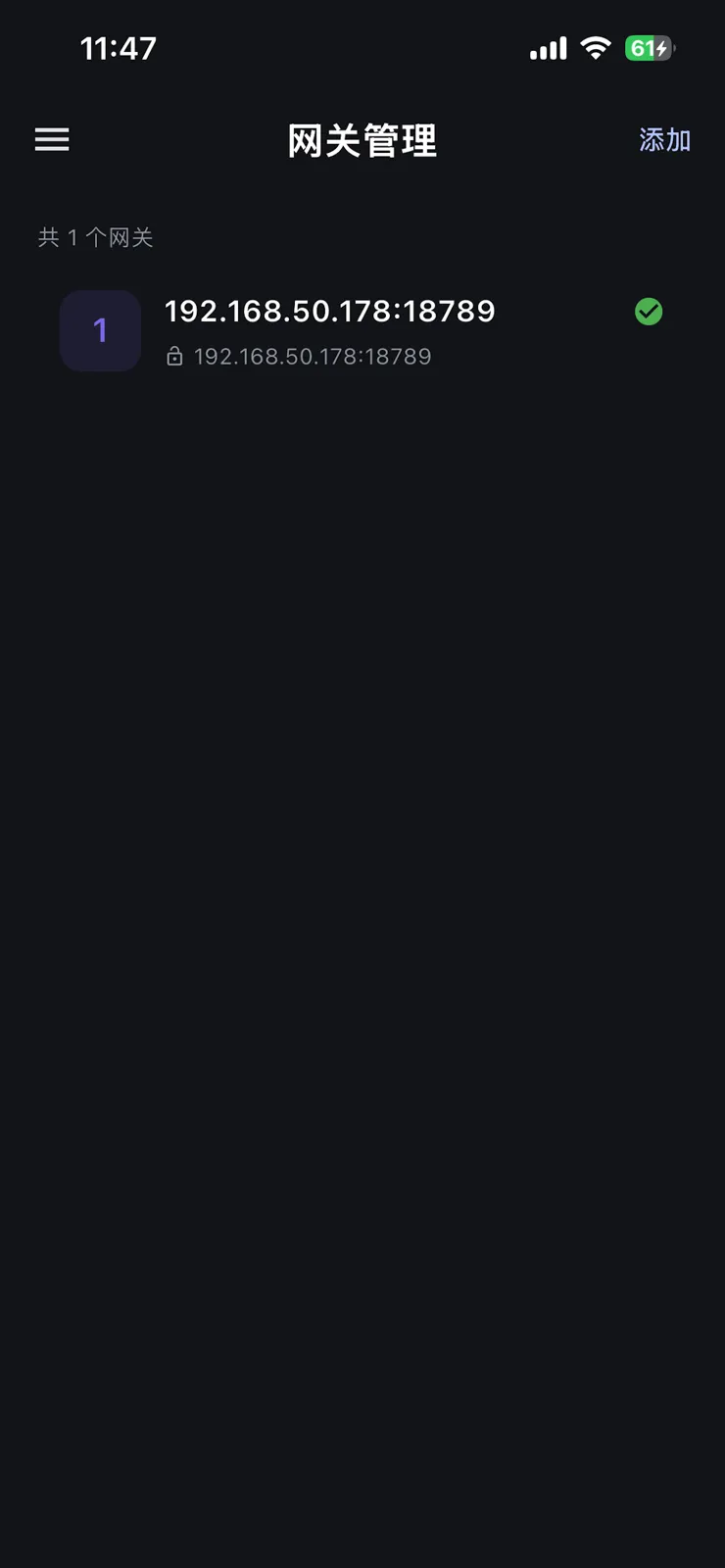
ParrotClaw can hold several servers at once and switch between them in one tap.
Adding a server
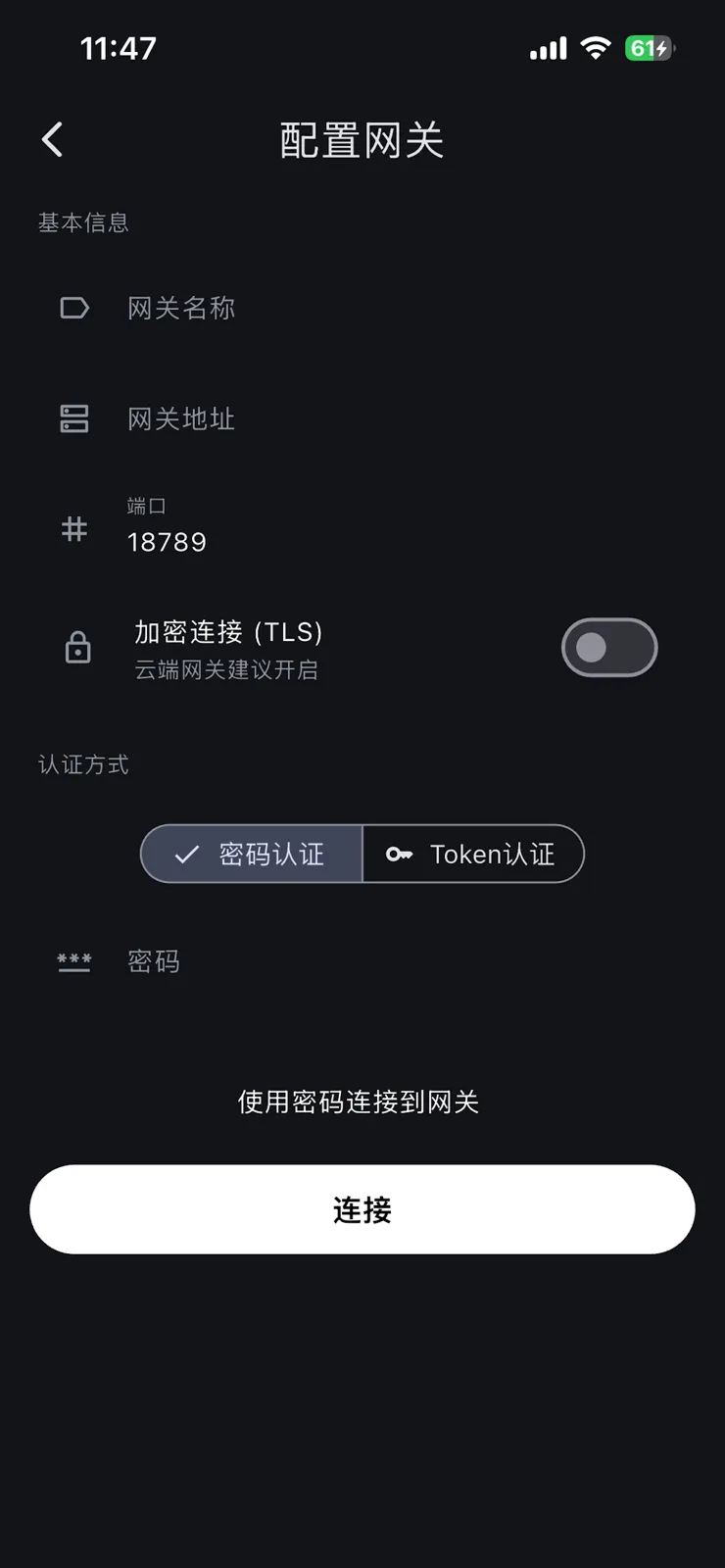
Fill in the server details:
| Field | Description | Example |
|---|---|---|
| Name | Any name you like | "OpenClaw" |
| Address | WebSocket address of the OpenClaw Gateway | 192.168.1.100 |
| Port | OpenClaw Gateway port | 18789 |
| Token | Authentication token | e939... |
Keyboard shortcuts (desktop)
The following shortcuts are supported:
| Shortcut | Action |
|---|---|
Enter | Send message |
Shift + Enter | New line |